 Customer login
 Career
 VR
VR


Undiscovered OneDrive features that noticeably improve your workflow
OneDrive has long been more than just cloud storage. With a few little-known functions, you can collect files in a more structured way, share them more securely, continue working offline and retain control over versions at all times. Here are the most important features – compactly explained and ready to use.
1) Collect files with “Request Files”
With “Request files”, you create a link that others can use to upload files to a specific folder – without seeing the other folder contents and even without your own OneDrive account.

- Select folder in OneDrive
- Click on “Request files” and share link
- Uploads land cleanly in your destination folder
Ideal for: Customer documents, applications, course documents, project submissions.
2) Edit files directly in native apps
Open files directly from OneDrive in powerful desktop programs (e.g. PDFs in Acrobat/Edge, images in Photoshop, code in VS Code). Changes are synchronized – without extra export.
3) Restore versions
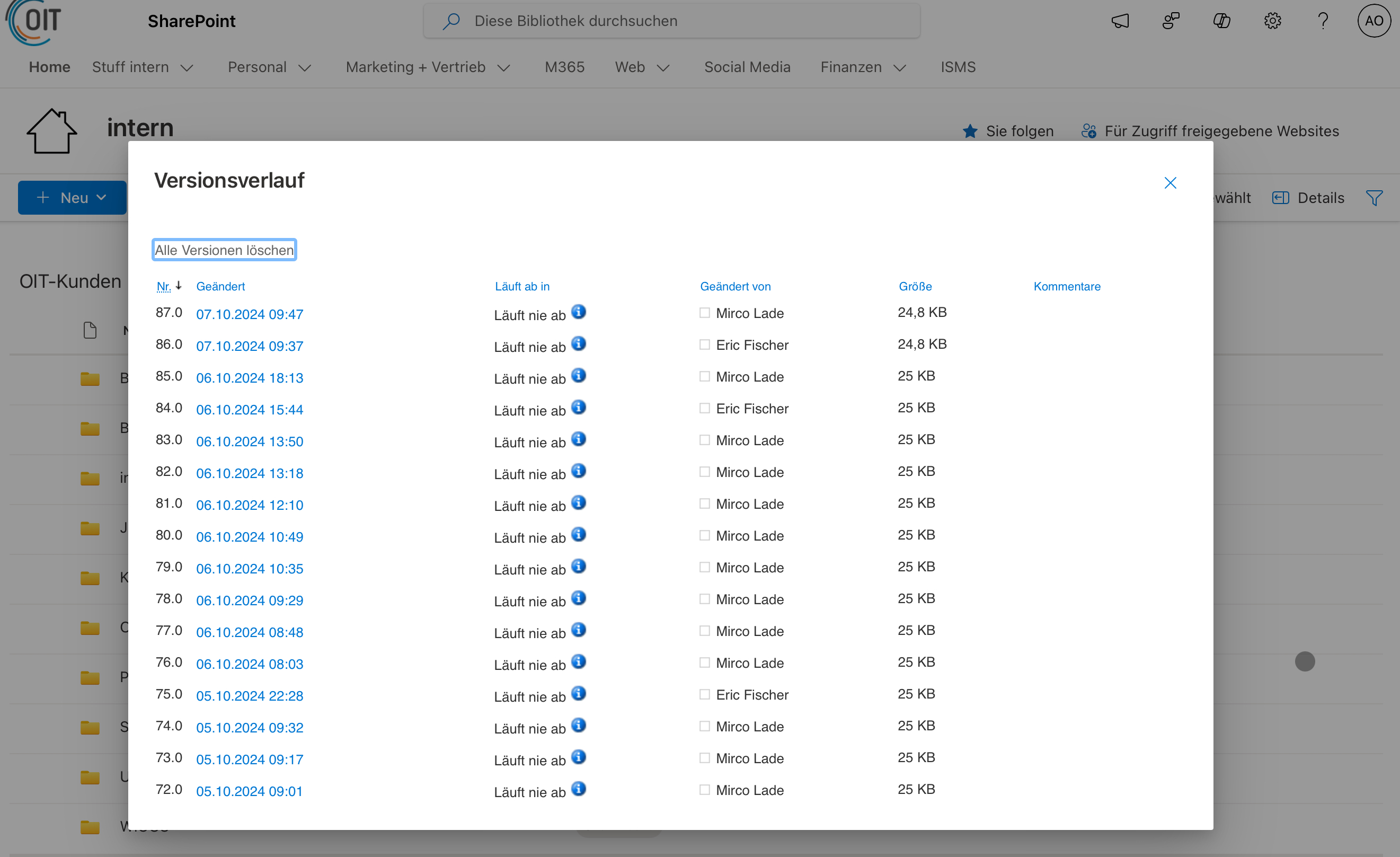
The version history function allows you to view previous versions, compare them by date and restore older versions with a single click – even for shared files.
4) Save shared folders as a shortcut
Add shortcuts to shared folders to your “My files” view. This way, important team folders are in your usual structure – easier to find, search and organize.
5) Links with expiration date
Set an expiration date when sharing. After this date, access expires automatically – practical for time-critical or sensitive content.
6) Scanning with the smartphone
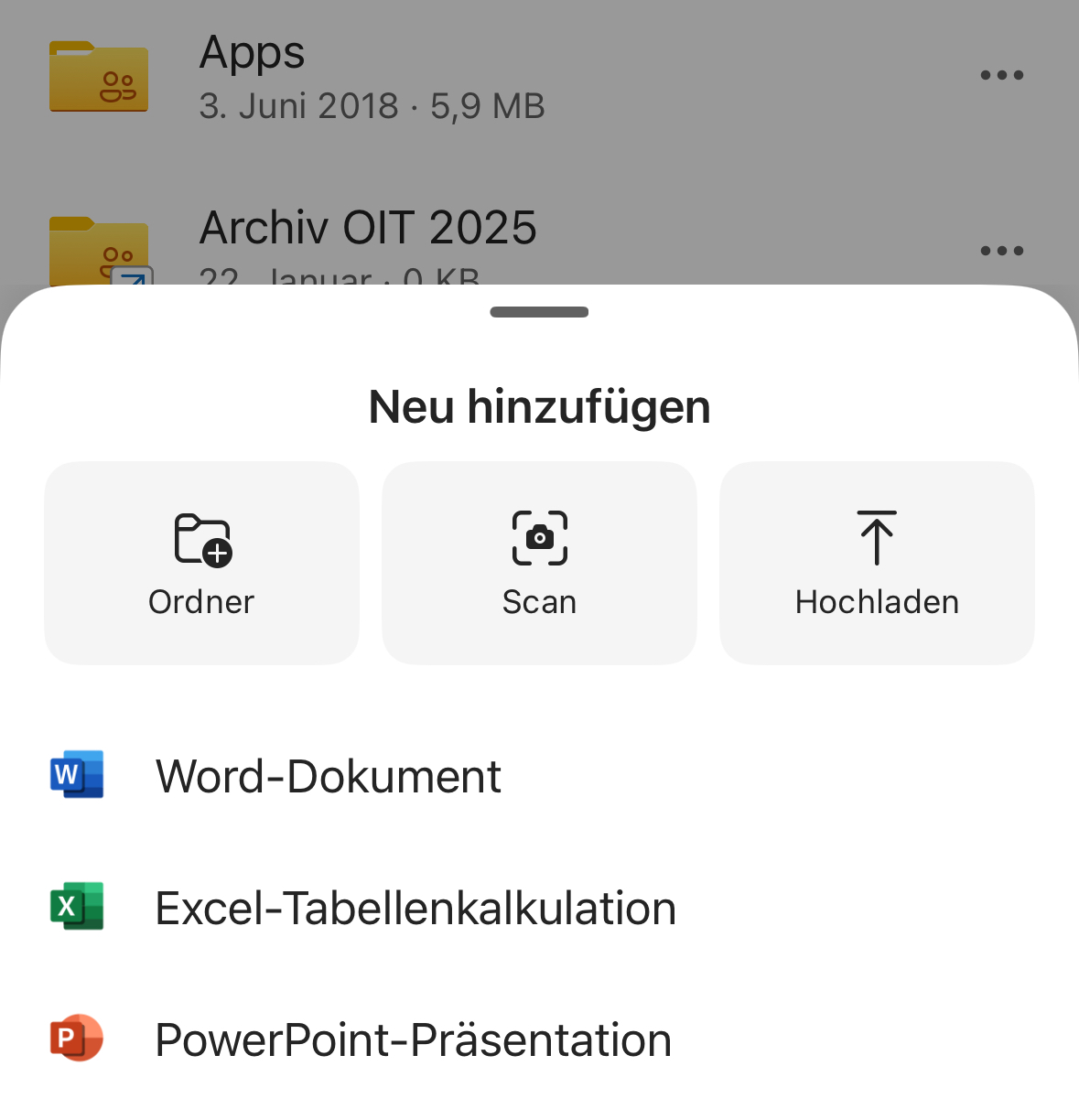
The OneDrive app scans receipts, notes or whiteboards directly as PDF/JPG. Crop, name, save – immediately available in the cloud.
7) Sign PDFs on the go
Open PDFs on the go, sign them directly and save the signature for later documents. Perfect for approvals and confirmations on the go.

8) Work offline – everywhere
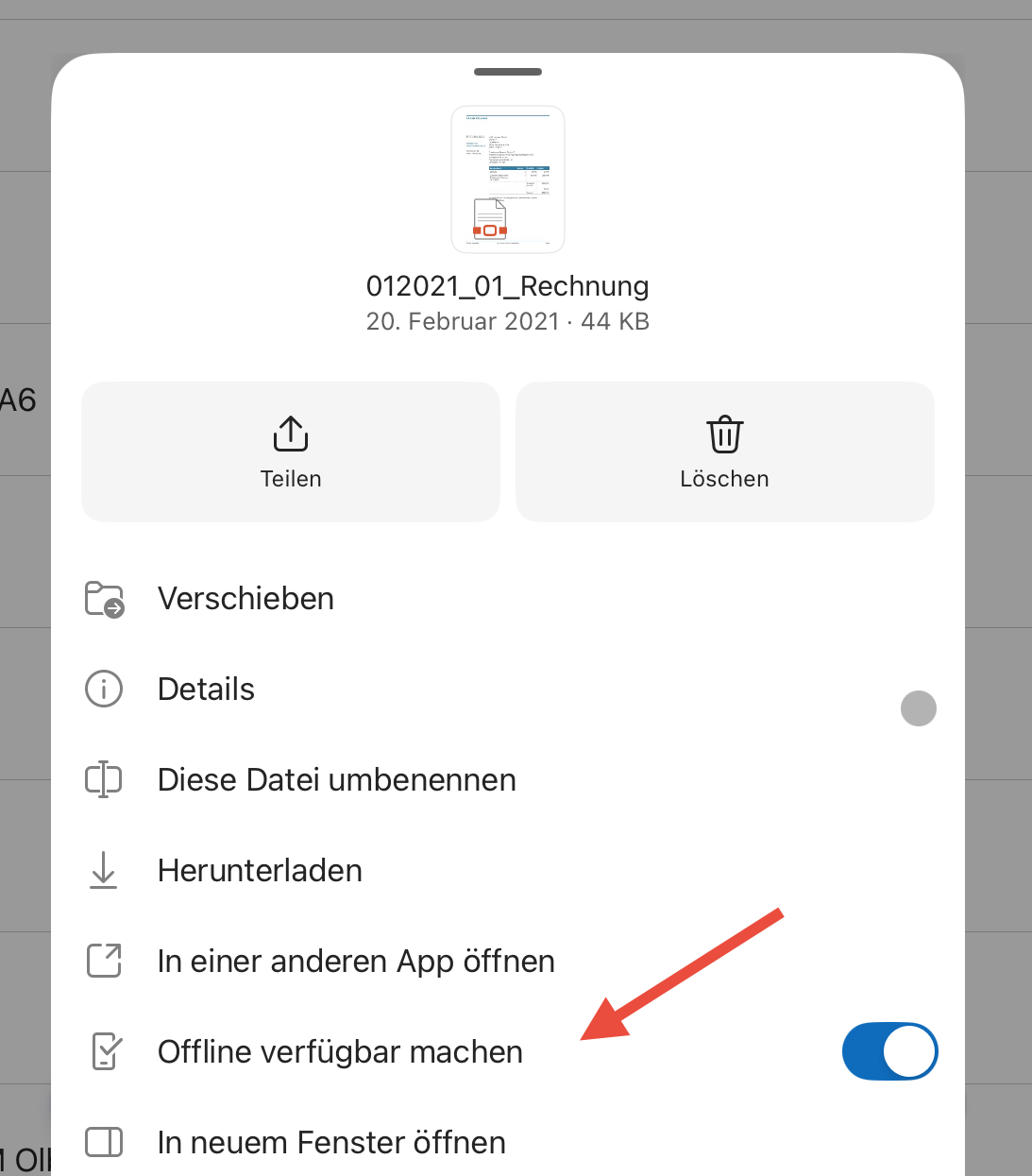
Mark files/folders as available offline (desktop, mobile, web). You continue working without the Internet; synchronization takes place automatically the next time you go online.
Bonus tips
- Files On-Demand: Files are displayed in the Explorer/Finder, but only loaded when required – saves local memory.
- Automatic backup: Automatically back up important folders (desktop, documents, images) to OneDrive.
- Quick access on the web: “Recent”, “For you” and “Shared” take you to the file you are looking for more quickly.
- Advanced search: Filter by file type, owner, modification date and folders.
Conclusion
With “Request files”, expiration dates, version history, links to shared folders, mobile scan, PDF signature and offline availability, you can get much more out of OneDrive – more secure, faster and more structured.

Dominik Zumstrull, Senior IT Consultant
Dein Ansprechpartner für Microsoft OneDrive in Osnabrück
FAQ about OneDrive Power features
How do I activate “Request files”?
Open OneDrive in the browser, select the target folder, click on “Request files” and create the link. Note: In some organizations, the function may be restricted by admin policies.
Does offline access also work on the Mac?
Yes, you can use the OneDrive app for macOS to mark files/folders as available offline. They are then available without the Internet and synchronize automatically later.
Can I always set an expiration date for shared links?
In OneDrive for work/school, you can define an expiration date when sharing. Whether this is available in your tenant may depend on your license and admin settings.
How do I restore an older version of a file?
Right-click on the file → Open version history → View or restore the desired version. This also works for shared files.
What is the difference between “Share” and “Request files”?
Share: Others see the folder contents (depending on authorization) and can collaborate. Request files: External users can only upload files to your target folder – without viewing existing content.


